Admissions and student records
Take an admission inquiry through follow-ups, test and interview to an enrolled student, then keep that student and guardian record in use for the rest of their time at the school.
Who uses it: Admissions staff, the front desk, the school office and the principal.
What it handles
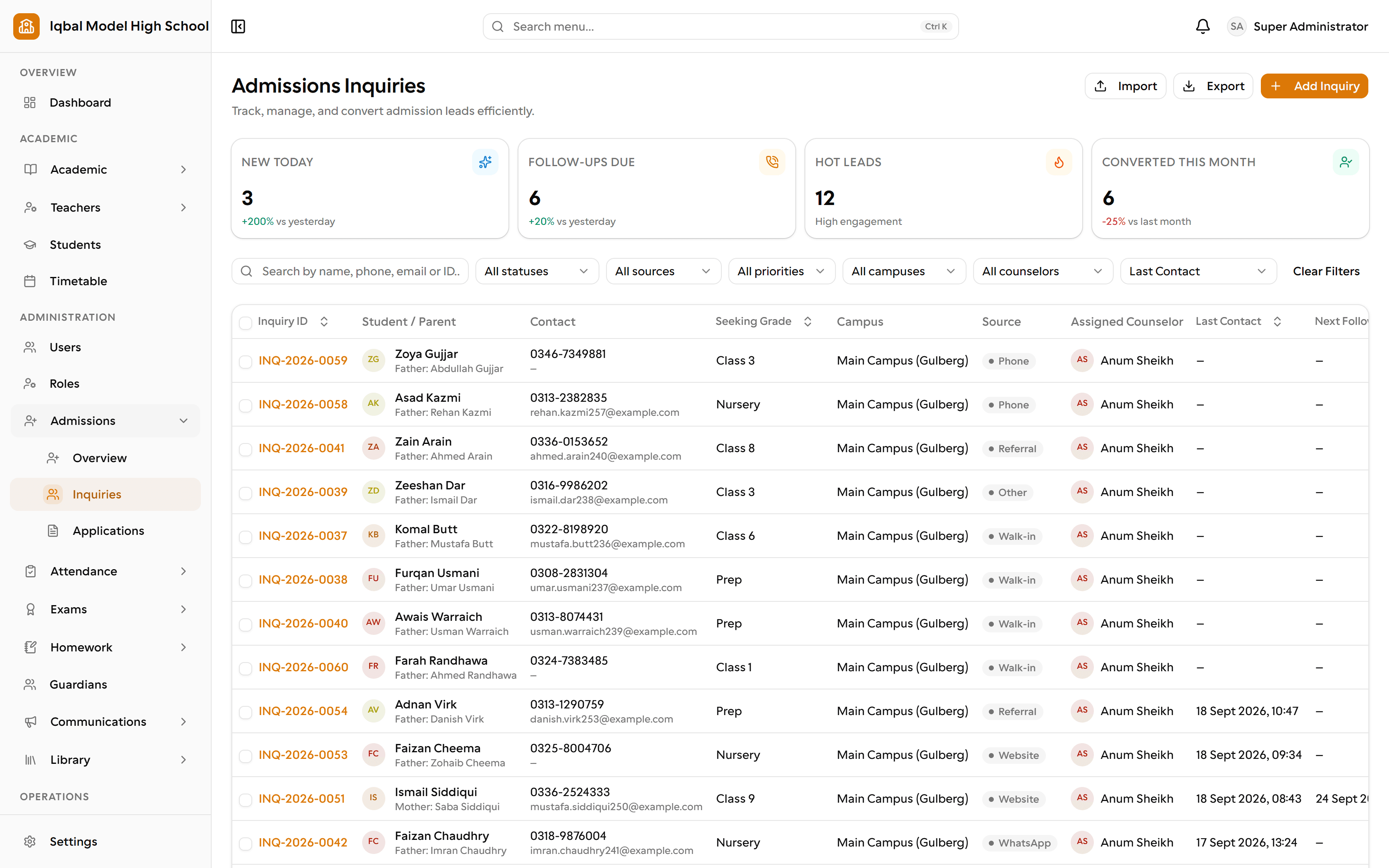
Admissions inquiries and applications
Record every admission inquiry with its own number, keep the follow-up against it, and take it forward to an application with a test score and an interview date.
Admissions pipeline and conversion
Move an applicant through test, interview and a separate approve, waitlist or reject decision, then enrol an approved applicant as a student in one step.
Admissions follow-up timeline
Log calls, emails, WhatsApp messages, visits and notes against an inquiry, with the next follow-up date shown so nothing is forgotten.
Student and guardian records
One student file with personal details, photo, guardians, siblings, documents, attendance, fees and results, reachable from every other area.
Guardians and family links
One guardian record can be linked to several children, with relationship, primary contact, emergency contact and a fee-responsibility split per child.
Bulk student import and export
Bring existing students in from Excel or CSV through a validate-then-import wizard that reports each bad row, and export a filtered list at any time.
- The import template covers name, date of birth, class, section and admission date; other fields are completed afterwards.
Student ID cards
Set the orientation, colours, fields, logo and photo on your own card design, then print one at a time or a whole class on cut-ready A4 sheets.
How the work flows
An inquiry arrives
Record who asked, which class they want and how to reach them. The inquiry gets its own number, a priority and a counsellor, and every call, message or visit is logged against it.
Follow-ups stay visible
The next follow-up date sits on the list, so nothing goes quiet. WhatsApp and email open from the inquiry itself and the outreach is recorded.
It becomes an application
Take the application forward with a test score and an interview date. The pipeline stage and the approve, waitlist or reject decision are tracked separately, so nobody is enrolled by accident.
The student enrols
An approved applicant becomes a student with an automatic admission number, a roll number, their guardians and a portal login, without retyping anything.
The record stays in use
That same record is what attendance, homework, results, fees, library and transport all refer to, so a correction is made once.
What you need first
- Set up your session, classes and sections first, so enrolled students have somewhere to go.
- Existing student lists can be imported from Excel or CSV rather than typed in again.
How it behaves
- Year-end promotion moves a class up together; the first run is done alongside us so the result is checked.
- The import covers name, date of birth, class, section and admission date; other details are completed afterwards.
In development for this area
Being built now, not yet available. Each line says what happens today instead.
Substitutions and versioned timetables
One timetable is in force at a time today. Recording a substitution when a teacher is away, and keeping a separate timetable per term, are being built.